Mouse travel is friction. When you are researching, writing, or reviewing a page, leaving the keyboard to click a bookmark bar costs more than it looks.
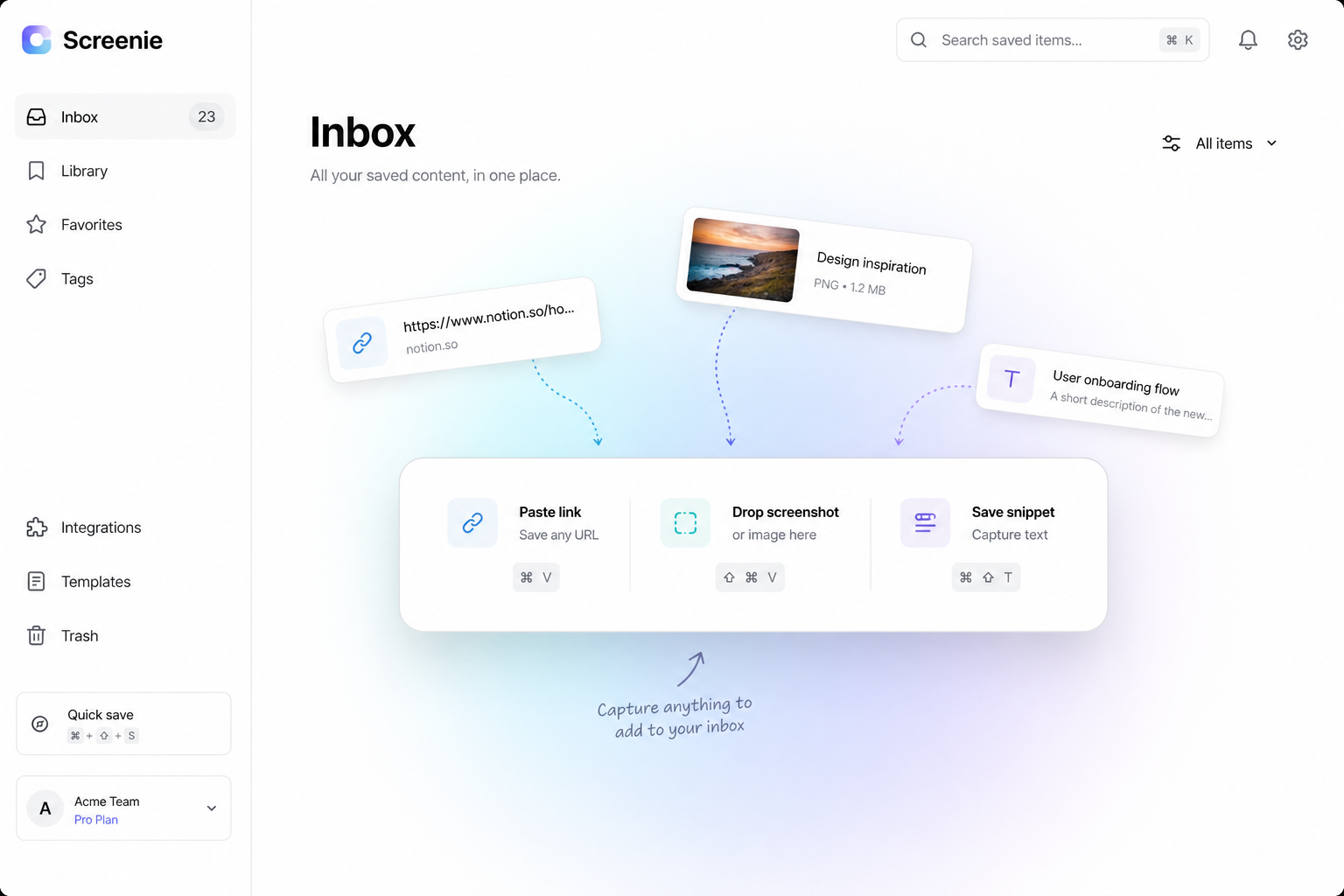
These shortcuts are the defaults for the Screenie Electron desktop app (see the Product page). Mobile uses the share sheet. See One-tap save workflow. Browser extension capture shortcuts are listed separately below.
Global
⌘ K          Open command palette / quick search
⌘ N          New save from clipboard
⌘ ,          Open settings
Inbox
J / K        Move selection down / up
Enter        Open selected save
⌘ Enter      Open in new tab
⌘ Backspace  Delete selected save
/            Focus search field
Esc          Clear search / close panel
Capture (extension)
⌘ Shift S    Save current page
⌘ Shift E    Save selected text only
⌘ Shift I    Save screenshot of visible area
Extension shortcuts are configurable in your browser's extension settings. If a combo conflicts with another app, rebind there.
Tips
- `/` to search — fastest path when you remember content, not position in the list
- `⌘ N` from anywhere — paste a URL or snippet you copied seconds ago
- Pair with [Getting started](/resources/getting-started) — prove search works before memorizing every shortcut
The point
You do not need every shortcut on day one. Learn search (/) and save (⌘ Shift S) first. Add the rest when capture becomes a daily habit.